MostLogin and ARNPROXY for managing multiple accounts
Keep browser profiles and proxy connections separate. Learn how to configure ARNPROXY proxies in MostLogin and choose between ISP, residential and rotating sessions.

This guide was prepared as part of the ARNPROXY and MostLogin partnership.
Managing client accounts, online stores or separate projects in one browser can mix cookies, sessions and browsing data. Websites may also consider IP addresses and browser signals such as language, timezone, screen size and WebGL. Separating these environments helps you keep account access organised.
MostLogin provides separate browser profiles; ARNPROXY provides the proxy connection assigned to each profile. This guide explains how to combine them for accounts you own or are authorised to manage. Neither a proxy nor an anti-detect browser guarantees that an account will never be restricted. The platform’s rules and your activity still matter.
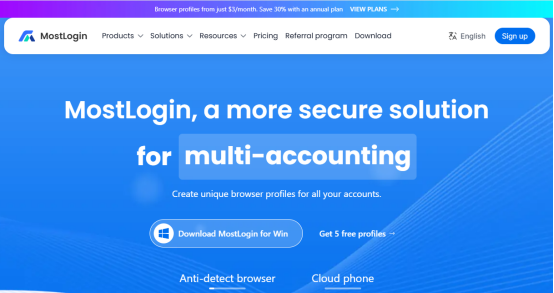
What is MostLogin?
MostLogin is a Chromium-based anti-detect browser with separate profiles for cookies, local storage, fingerprint settings and proxy connections. A profile lets you return to a particular account environment without mixing it with another project.
It also offers cloud-based Android phones for mobile app workflows. Browser profiles and cloud phones are different products: choose the environment your task actually needs.
Where separate profiles help
- Agencies managing social media accounts with their clients’ permission.
- Teams handling separate stores or advertising projects within each platform’s rules.
- QA, localisation checks and authorised data collection that need distinct test environments.
- Collaborators who need controlled access to profiles instead of repeatedly exchanging login details.
Features to consider
- Profile isolation: separate cookies, cache and local storage for each workspace.
- Fingerprint settings: manage browser signals such as language, timezone, canvas and WebGL consistently.
- Per-profile proxies: assign a connection and check its IP before launching the profile.
- Team tools: profile sharing, role-based permissions and cross-device synchronisation.
- API and automation: connect supported workflows through MostLogin’s local API and MCP tools.
- Cloud phones: Android environments for mobile applications, with their own connection and billing requirements.
Choosing an ARNPROXY connection
ARNPROXY Residential and ISP proxies provide exclusive, clean IPs that are not shared with other customers. Choose the product and session type to suit the account’s location and how long you need the connection to stay consistent.
For long-running account sessions, an ISP proxy or a residential sticky session may fit better than an IP that changes with every request. A sticky session follows the selected session duration and the service’s availability conditions; it does not mean the same address is reserved forever.
ARNPROXY’s residential offering has a 49M+ IP pool, with country, region, city and ISP targeting. Create a separate session for each profile when you need independent connections. Using the same gateway hostname in two profiles does not itself prove they have different exit IPs: check the results.
- ISP proxies
- Residential proxies
- IPv4 datacenter proxies
- IPv6 proxies
- Rotating ISP proxies
- Rotating datacenter proxies
Availability, rental terms and prices depend on the selected product and package. Check the linked product page for the current offer rather than assuming one starting price applies to every order.
Set up ARNPROXY in MostLogin
- Create a MostLogin profile and give it a clear name for the account or project. Keep a record of which profile belongs to which account.
- Open your ARNPROXY customer panel and copy the connection’s hostname or IP, port and authentication details. For residential proxies, first create the list with the location and session settings you need.
- Open the profile’s Proxy settings. Choose the protocol matching the connection supplied by ARNPROXY. MostLogin browser profiles support HTTP, HTTPS and SOCKS5; do not select HTTPS merely because the website you will visit uses HTTPS.
- Enter the host and port. If using username and password authentication, enter both exactly as supplied. With IP-based authorisation, add the correct connecting IP to the whitelist where the purchased product supports it.
- Use Check proxy IP before opening the profile. Confirm that the connection works and that the exit IP and location match the intended configuration. A successful connectivity check is not proof that every website will accept the IP.
- Check the profile’s timezone, language and WebRTC settings, then sign in to the account you are authorised to manage. Keep that account associated with the same profile.
- Repeat for your other accounts. Use independent proxy connections or sessions where separation is required, and recheck them after changing credentials, session settings or location.
Cloud phone connections
MostLogin’s current help documentation specifies SOCKS5 for cloud phone environments. Do not copy an HTTP or HTTPS browser configuration into a cloud phone unchanged. Use a compatible SOCKS5 connection and check it in the phone environment.
A cloud phone is an Android environment, not an SMS inbox or phone number supplied by ARNPROXY. If an application requires a verification number, arrange an eligible number separately and follow its rules.
Plans and getting started
MostLogin’s Starter plan currently includes five browser profiles for one owner at no charge. Paid plans increase profile capacity and other limits. Cloud phones are billed separately.
Start with a small authorised workflow, check the connection and profile settings, then choose the capacity you need. Visit MostLogin’s pricing page for current limits and billing details.
Troubleshooting the connection
- Connection fails: check the protocol, host, port, credentials and any IP whitelist. Confirm the proxy’s rental period or residential traffic quota is still valid.
- Wrong location: review the residential list’s country and other targeting choices, then check the actual exit IP.
- IP changes during a session: review rotation versus sticky settings and the selected session duration.
- Only one website refuses access: a working proxy cannot override that website’s account rules or risk checks. Avoid repeatedly retrying a blocked account without reviewing the cause.
Frequently asked questions
Can several profiles use the same proxy?
It can be technically possible, but the profiles then share a network signal. When separate connections are your goal, use one account per profile and a suitable independent proxy or session for each.
Does this guarantee that accounts will not be banned?
No. Profile separation and exclusive clean IPs do not replace platform permissions, identity checks or acceptable-use rules.
Will a residential proxy keep the same IP permanently?
Not simply because it is residential. Choose sticky or rotating behaviour deliberately; sticky sessions are subject to their configured duration and service conditions.
Do I need a different proxy provider for MostLogin?
No. You can enter the compatible ARNPROXY connection details directly in MostLogin’s proxy settings and test them before use.
Build your first profile
Create a MostLogin profile, choose the ARNPROXY connection that suits your task, and check the settings before signing in. Keep your profile-to-account mapping clear as your work grows.
Useful links

IPv4 Datacenter Proxy vs. ISP Proxy Difference
IPv4 Datacenter Proxy vs. ISP Proxy Difference
Twitch growth automation and proxy guide
Twitch growth automation and proxy guide
Facebook proxy types and setup guide
Facebook proxy types and setup guide