Checking an Android cloud phone’s network region and proxy settings before a test
A practical checklist for reviewing proxy settings, the visible exit IP and target-page behaviour before testing with an Android cloud phone.

When testing a website or application on an Android cloud phone, the network’s exit region is one variable that can affect the result. The same page may show different content depending on the exit IP, account settings, system language or location permissions. “A proxy has been configured” and “the application under test actually uses the expected exit” therefore need separate verification. The following workflow makes findings easier to record and review.
1. Define what this test needs to verify
Before starting, identify the target country or region, the application under test and the actions to cover. Checking whether a page opens from a particular region and checking its localised content after login are different test objectives.
Also record the test time, cloud phone instance identifier, application version and expected exit region. An internal number can identify the instance; public screenshots and partnership articles do not need to expose real device identifiers, accounts or proxy passwords. Change only one key variable at a time to help distinguish proxy connection issues from application settings or the target service.
2. Check the proxy details and the configuration’s scope
Verify the host, port, protocol, authentication method and region against the proxy provider’s dashboard or delivery information. Do not infer the current connection’s exit region solely from a package name, and do not put account passwords in public test records.
A proxy may be configured at device level, in an application or in a particular browser. Different settings can cover different traffic: a working browser configuration does not prove that requests from other applications follow the same path. First confirm the configuration methods supported by the current cloud phone version and the application under test, then enter the details according to the relevant documentation. HTTP, HTTPS and SOCKS5 are not interchangeable names. Correct a protocol mismatch before continuing.
Using the interface shown in FoxPhone’s official cloud phone proxy configuration tutorial as an example:
- Find the cloud phone to configure in the console’s device list and open “Add proxy”.
- Select SOCKS5 in the “Edit proxy” window. Enter the provider’s IP address or domain, port and, where applicable, username and password.
- Click “Check” and review the result, then save after confirming it. If using the “Select static IP” tab, check that the selected record matches this test’s plan.
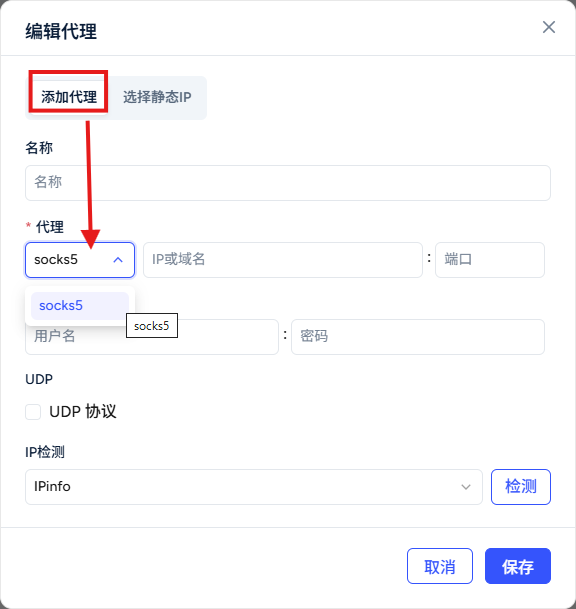
The “Check” action here checks whether the configuration is usable; you still need to enter the cloud phone to verify its actual exit. The official tutorial uses another proxy provider to demonstrate how to obtain connection details. This article references only FoxPhone’s configuration interface; use ARNPROXY’s actual delivery information for its protocol and connection details.
3. Check the exit in the actual environment under test
After configuring the proxy, open an IP lookup page inside the cloud phone and record the public IP, reported region and lookup time. The lookup must take place in the environment under test. The IP shown by a browser on your local computer does not represent the remote cloud phone’s network exit.
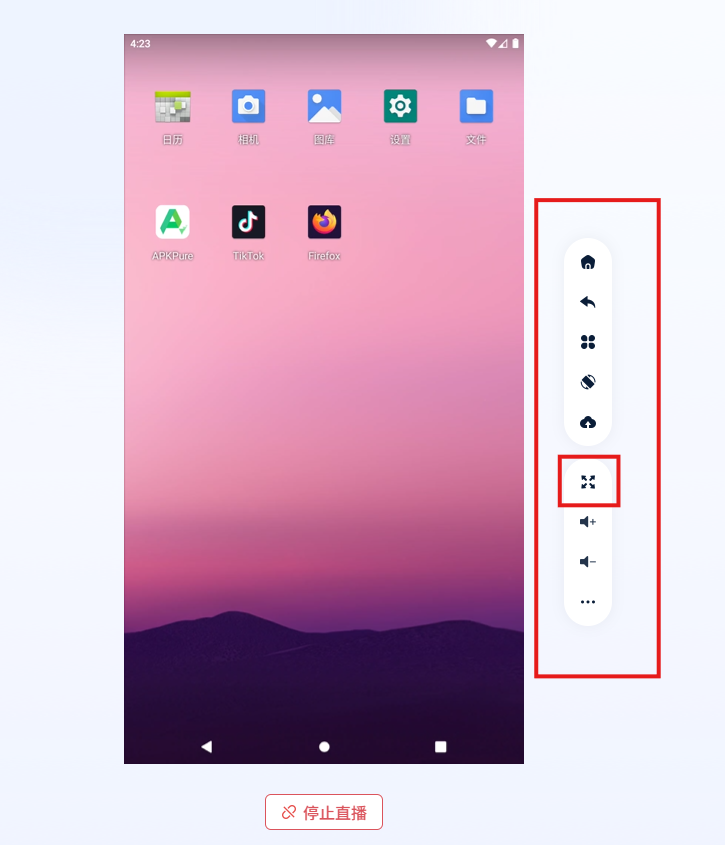
If another application is being tested, also verify the connection through a diagnostic page it supports or through observable normal requests. A correct browser exit establishes only the result of that browser request.
IP geolocation databases can differ in update time and level of detail. If two lookup services report different cities, preserve the original results and investigate them alongside the provider’s assigned region. A single lookup does not establish that an exit is permanently fixed or identify the device’s physical location.
4. Review other variables that can be confused with the IP
Besides the exit IP, the system time zone, interface language, application cache, account region and location permissions can affect what is displayed. Record these settings first, then adjust them according to a clearly defined test need. Do not omit actual differences just to make screenshots appear consistent.
If browser IPv6, DNS or WebRTC behaviour is relevant, observe the actual results with suitable diagnostic tools and state the tool and test scope. A check page showing no additional address does not establish that all applications, protocols and subsequent requests follow the same network path.
5. Retest and keep comparable records
After the first check, reopen the application under test. Where necessary, disconnect and restore the proxy connection, then recheck the exit and target page. For rotating proxies, verify that actual session behaviour matches the provider’s explanation. Record the results before and after rotation rather than assuming the IP will remain unchanged.
A simple record table can support later troubleshooting:
| Check | Suggested record |
|---|---|
| Test environment | Internal instance ID, system and application versions |
| Expected network | Country or region, protocol and proxy type; do not record passwords |
| Actual observation | Lookup time, exit IP, lookup tool and reported region |
| Operation result | Whether the page opens, the specific error and relevant settings |
| Retest differences | Changes after reconnecting or rotating, and unresolved questions |
When an issue appears, first distinguish a connection failure, authentication failure, geolocation discrepancy and the target application’s own restrictions. Then provide the relevant service with the necessary records after removing sensitive information. A proxy changes the network exit; it does not automatically change device location or account region, and it does not guarantee account security, platform acceptance or business success.
About the test environment
FoxPhone provides browser-accessible cloud phones and Android cloud emulators with independent device profiles, multi-instance management and batch control. Confirm specific network configuration against the current product documentation and actual testing.
Partnership disclosure: The original article and screenshots were supplied by the FoxPhone team for a no-fee content exchange. ARNPROXY translated and edited this English version.

MostLogin and ARNPROXY for managing multiple accounts
Keep browser profiles and proxy connections separate. Learn how to configure ARNPROXY proxies in MostLogin and choose between ISP, residential and rotating sessions.
IPv4 Datacenter Proxy vs. ISP Proxy Difference
IPv4 Datacenter Proxy vs. ISP Proxy Difference
Twitch growth automation and proxy guide
Twitch growth automation and proxy guide